> ## Documentation Index
> Fetch the complete documentation index at: https://docs.tavus.io/llms.txt
> Use this file to discover all available pages before exploring further.

# Customize Conversation UI

> Experience a conversation in a custom Daily UI — styled to match your preference.

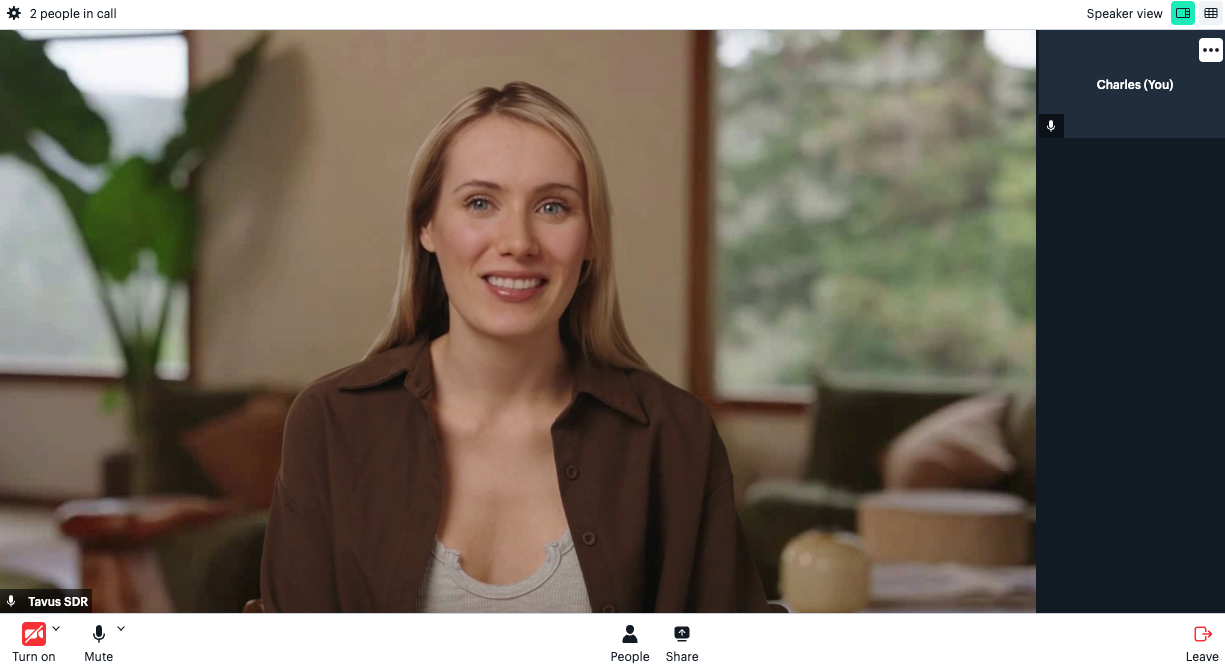
You can **customize your conversation interface** to match your style by updating Daily's Prebuilt UI.

Here’s an example showing how to customize the conversation UI by adding leave and fullscreen buttons, changing the language, and adjusting the UI color.

<Note>
  For more options, check the <a href="https://docs.daily.co/guides/products/prebuilt/customizing-daily-prebuilt-calls-with-color-themes" target="_blank">Daily theme configuration reference</a> and <a href="https://docs.daily.co/reference/daily-js/daily-call-client/properties" target="_blank">Daily Call Properties</a>.
</Note>

### Customization Example Guide

<Steps>
  <Step title="Step 1: Create Your Conversation">
    <Note>
      In this example, we will use stock replica ID ***rf4e9d9790f0*** (Anna) and stock persona ID ***pcb7a34da5fe*** (Sales Development Rep).
    </Note>

    Use the following request body example:

    ```sh  theme={null}
    curl --request POST \
      --url https://tavusapi.com/v2/conversations \
      --header 'Content-Type: application/json' \
      --header 'x-api-key: <api_key>' \
      --data '{
      "replica_id": "rf4e9d9790f0",
      "persona_id": "pcb7a34da5fe"
    }'
    ```

    <Note>
      Replace `<api_key>` with your actual API key. You can generate one in the <a href="https://platform.tavus.io/api-keys" target="_blank">Developer Portal</a>.
    </Note>
  </Step>

  <Step title="Step 2: Customize the Conversation UI">
    1. Make a new `index.html` file

    2. Paste following code into the file, replace `DAILY_ROOM_URL` in the code with your own room URL from step above

    ```html {6-8,16-22} theme={null}
    <html>
      <script crossorigin src="https://unpkg.com/@daily-co/daily-js"></script>
      <body>
        <script>
          call = window.Daily.createFrame({
            showLeaveButton: true,       // Leave button on bottom right
            lang: "jp",                  // Language set to Japanese
            showFullscreenButton: true,  // Fullscreen button on top left
            iframeStyle: {
              position: 'fixed',
              top: '0',
              left: '0',
              width: '100%',
              height: '100%',
            },
            theme: {
              colors: {
                accent: "#2F80ED",      // primary button and accent color
                background: "#F8F9FA",  // main background color
                baseText: "#1A1A1A",    // text color
              },
            },
          });
          call.join({ url: 'DAILY_ROOM_URL' });
        </script>
      </body>
    </html>
    ```
  </Step>

  <Step title="Step 3: Run the Application">
    Start the application by opening the file in the browser.
    <Frame>
            <img src="https://mintcdn.com/tavus/n1GjuWL0lBZS5HZU/images/customui.png?fit=max&auto=format&n=n1GjuWL0lBZS5HZU&q=85&s=111ecc9ffab41b4195aa70387c4a76a9" alt="" width="1225" height="666" data-path="images/customui.png" />
    </Frame>
  </Step>
</Steps>


Built with [Mintlify](https://mintlify.com).